Duplicate a schedule
You can now duplicate a schedule. A second front desk, a weekend version of your support schedule, or the same on-call for another office starts from one you already set up, instead of from a blank form.
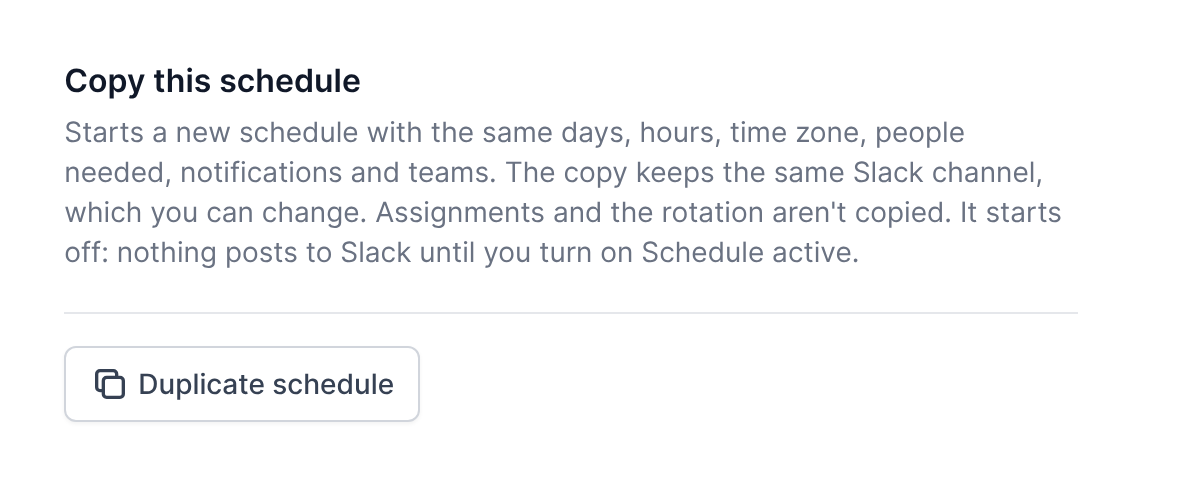
Open the schedule's settings, then click "Duplicate schedule" at the bottom of General. The copy gets the same days, hours, time zone, people needed, Slack channel, notifications and teams. Assignments and the rotation aren't copied.
The copy opens with its name selected, so you can type the new one and save. It starts off, so nothing goes to Slack until you turn on "Schedule active", right there at the top of its settings.
Managers and admins can duplicate a schedule from the app, the API and your AI assistant (duplicate_schedule).