How to add a team calendar to Slack
Slack has no team calendar of its own. To see who is working, off or on duty each day, share a Google Calendar in a channel, or add an app like TurnShift that posts it there for you.
Does Slack have a calendar?
Not a team one. Slack's Google Calendar and Outlook Calendar apps show each person their own meetings and set their status to "In a meeting" or "Out of office". Nothing shows who is on support this week or who is off on Friday, so teams pin a message or a spreadsheet and keep it current by hand.
Option 1: a shared Google Calendar
Good for time off and team events, and free.
- In Google Calendar, create a calendar for the team and share it.
- Add each shift or day off as an event, with the person's name in the title.
- In Slack, add the Google Calendar app, connect that calendar, add the app to your channel and turn on Channel Notifications.
The channel then hears about new and changed events. On a paid Slack plan, the app can also post a daily or weekly summary.
It gets heavy when people take turns: a month of weekday support is about twenty events to type, and a swap means editing two. Mobile Club's engineering team told us: "We started with a shared Google Calendar. It was super easy to setup but required a lot of manual actions to keep it up to date."
Option 2: TurnShift
TurnShift is the team calendar we make for Slack. Each schedule (support, on-call, front desk) posts to a Slack channel, so nobody has to ask "who is on today?" anymore. Algolia's engineering teams have used it since 2020.
- Add TurnShift to Slack. Your people come from the workspace, so there is nobody to invite.
- Create a schedule: a name, its hours, how many people you need each day, and its Slack channel.
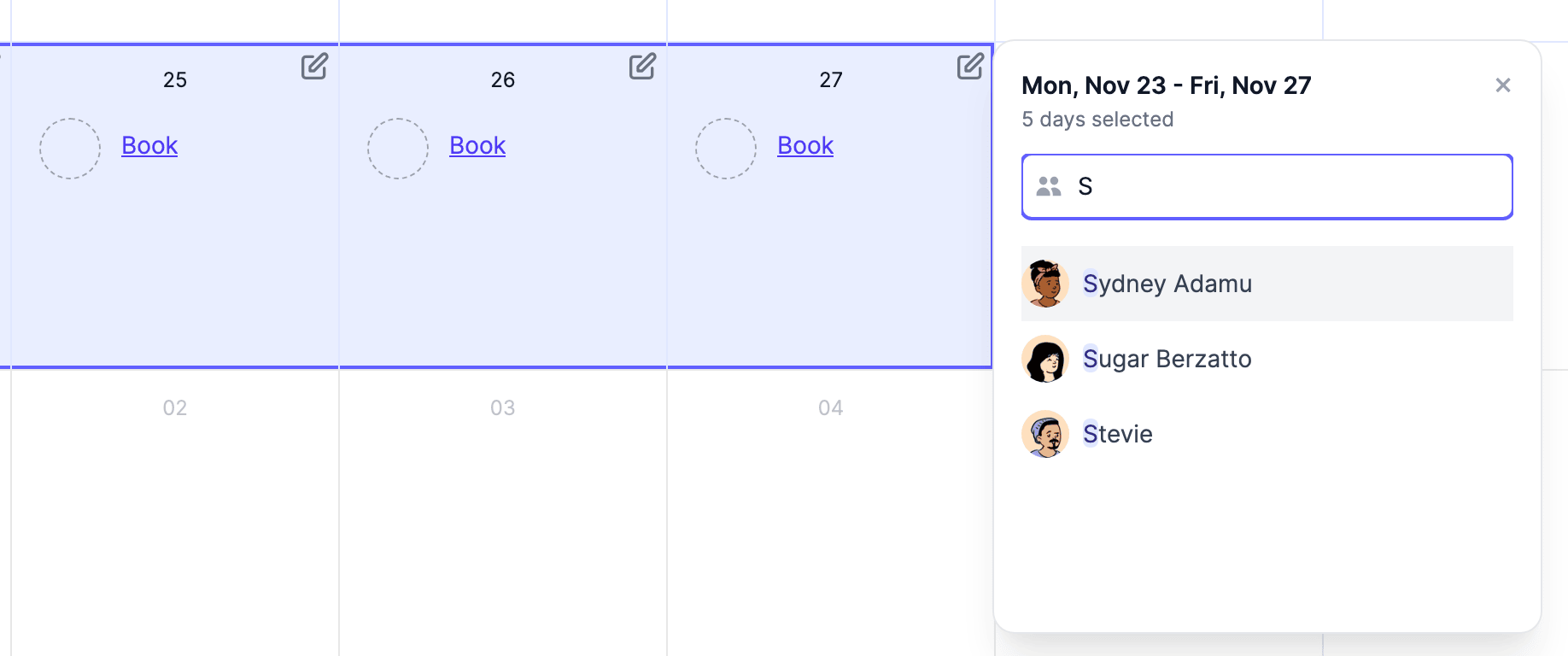
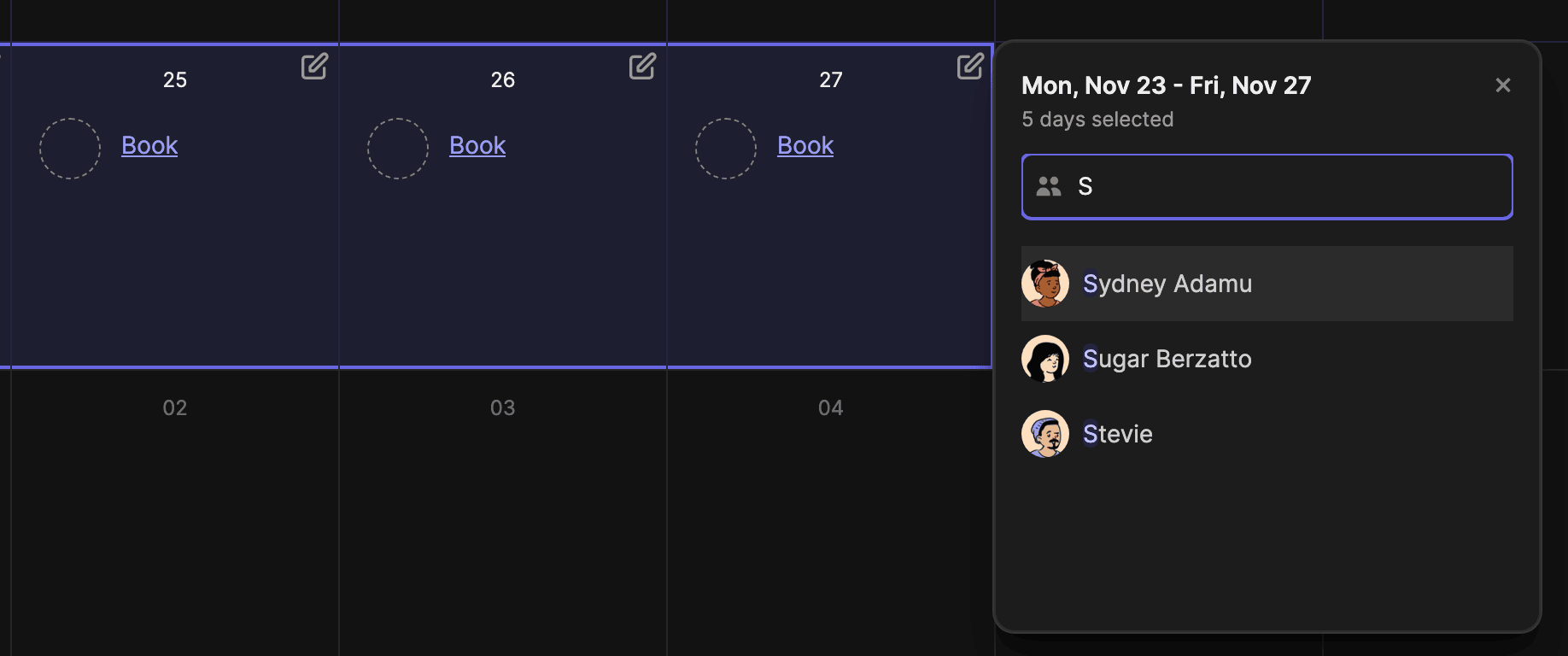
- Select days and type a name, a whole week in one drag. Or click Auto-assign to spread the days across the team, or let people book their own.
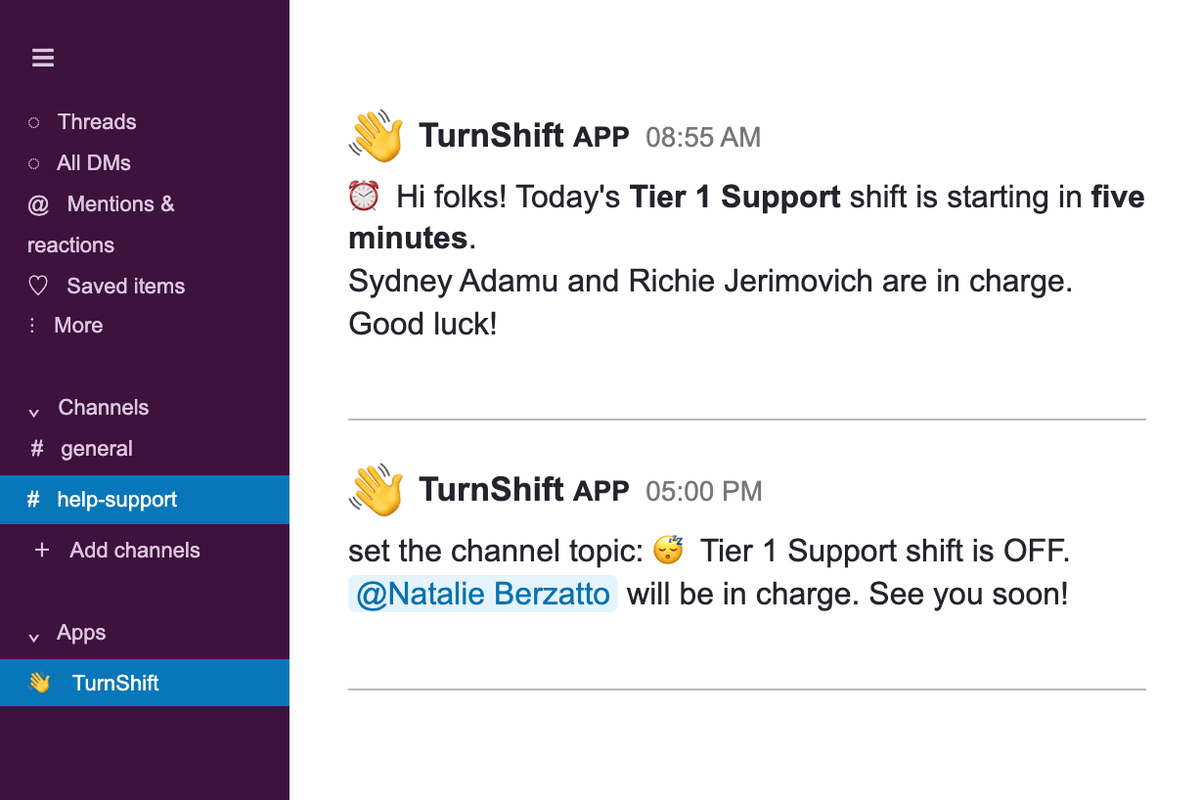
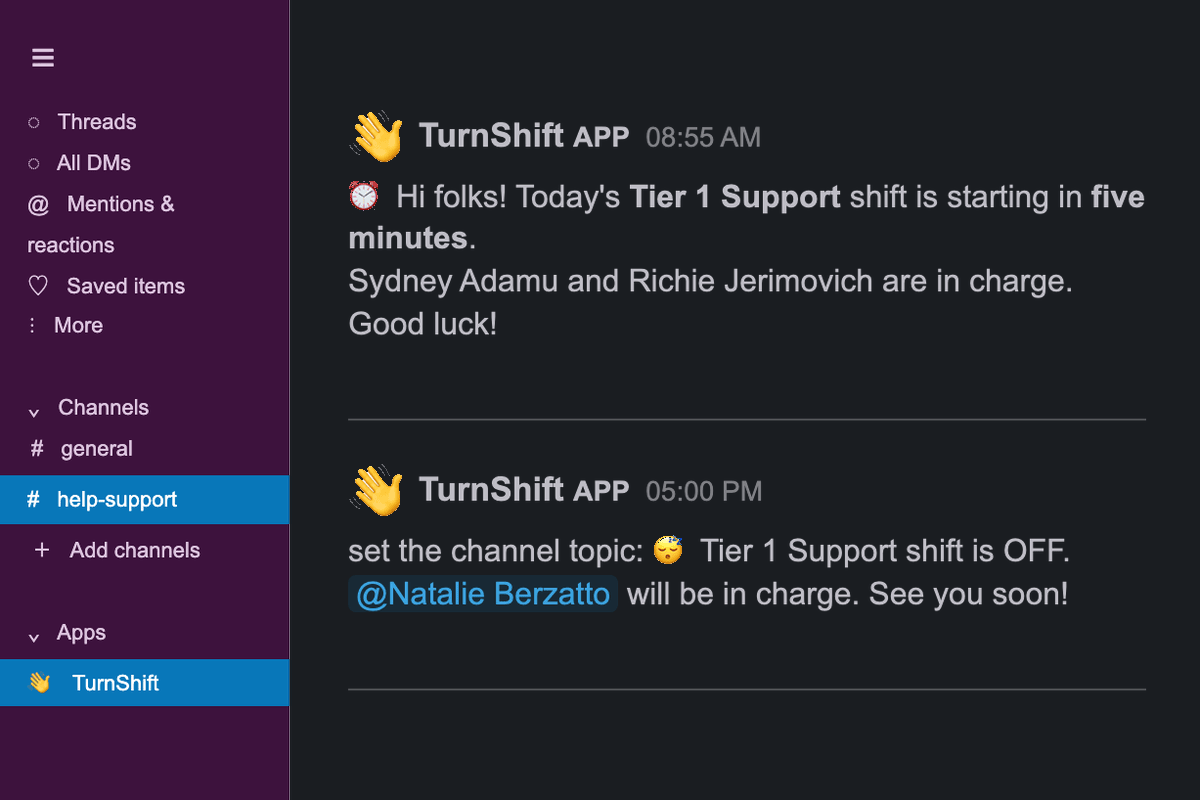
TurnShift then keeps Slack up to date:
- The channel topic shows who is on right now.
- The channel gets a message 5 minutes before a shift starts, and another when it ends, saying who is next.
- People get a direct message before their shift, the day before, and on Fridays with next week's shifts.
The calendar shows every schedule on one week: who is on, who is off, and which days still need someone.
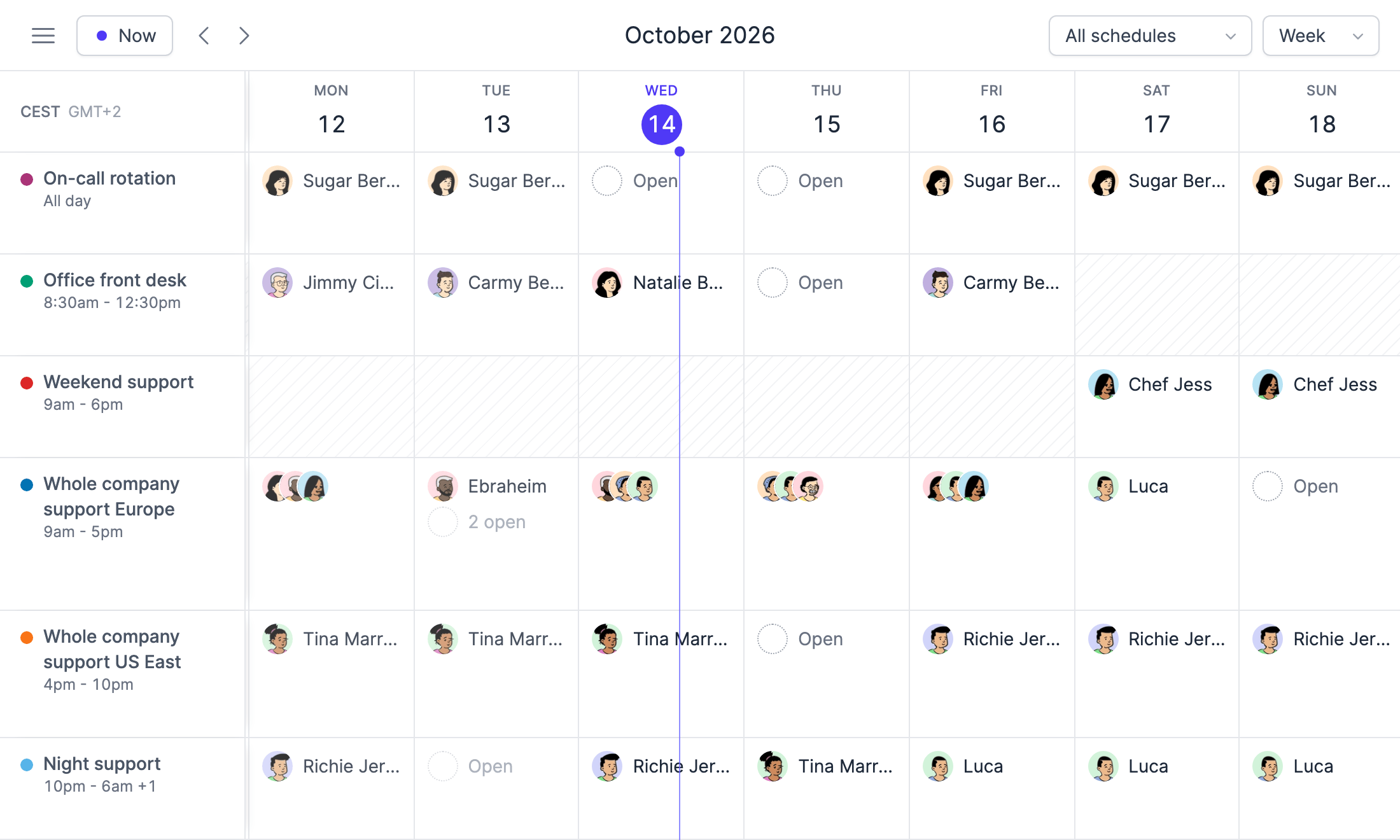
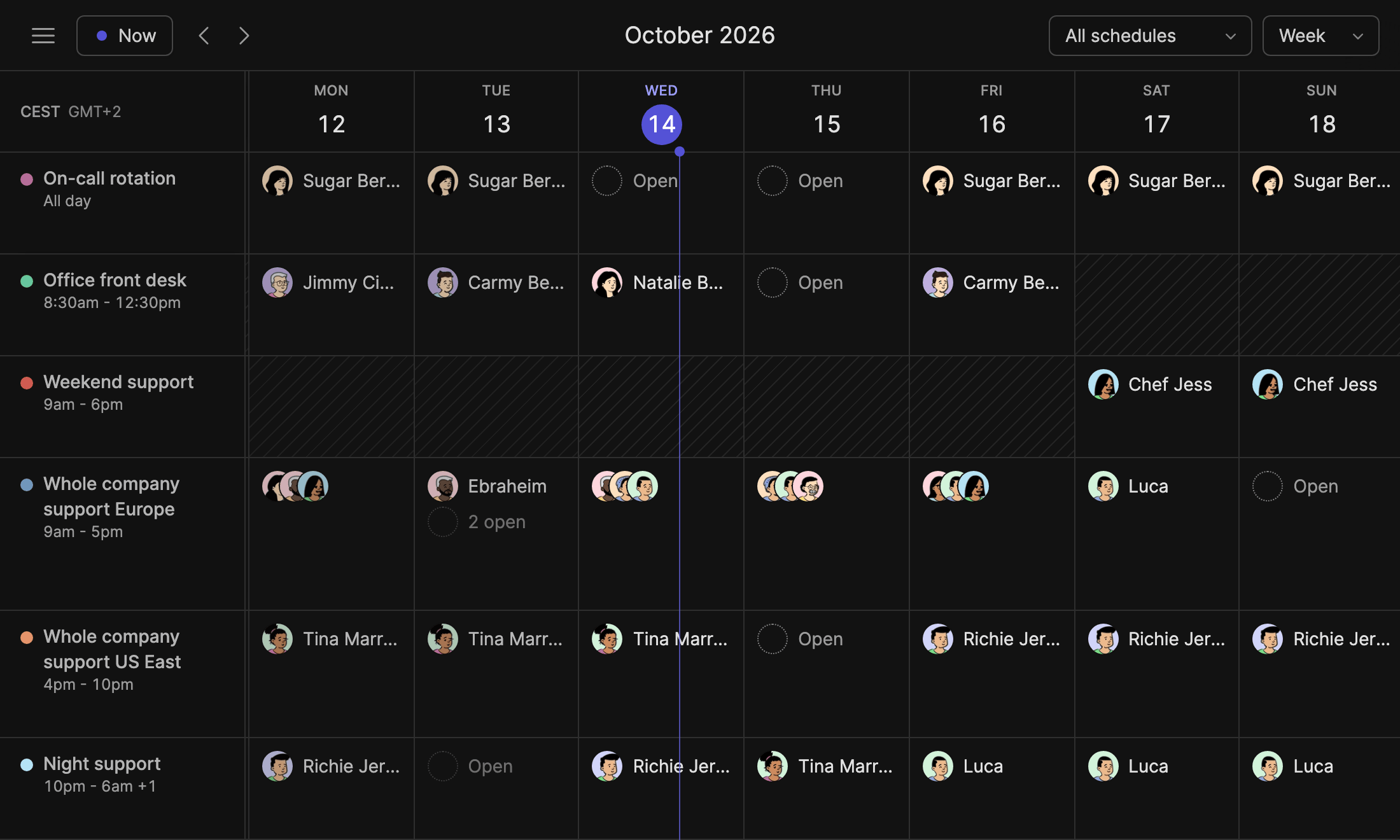
It costs €3.50 per user a month billed yearly, only for active users, with a 14-day free trial.
Which one should you use?
| Shared Google Calendar | TurnShift | |
|---|---|---|
| Who is on now, in the channel | No, only event notifications | Yes, in the topic and before each shift |
| Reminds the person on duty | Only if they connected their own calendar | Yes, by direct message |
| Filling a month of turns | One event per shift, typed by hand | Select days, or Auto-assign |
| Price | Free, summaries need a paid Slack plan | €3.50 per user a month, 14 days free |
If you mostly need meetings and time off, use the shared Google Calendar. If people take turns, use TurnShift. Start with one schedule, like support: add TurnShift to Slack.
Happy scheduling!
PS: TurnShift does not page anyone when something breaks. If you run on-call for incidents, keep PagerDuty or incident.io for the alerts and use TurnShift for the schedule.